⚡ Executive Summary: The 2026 Indian Wedding Post-Production Revolution
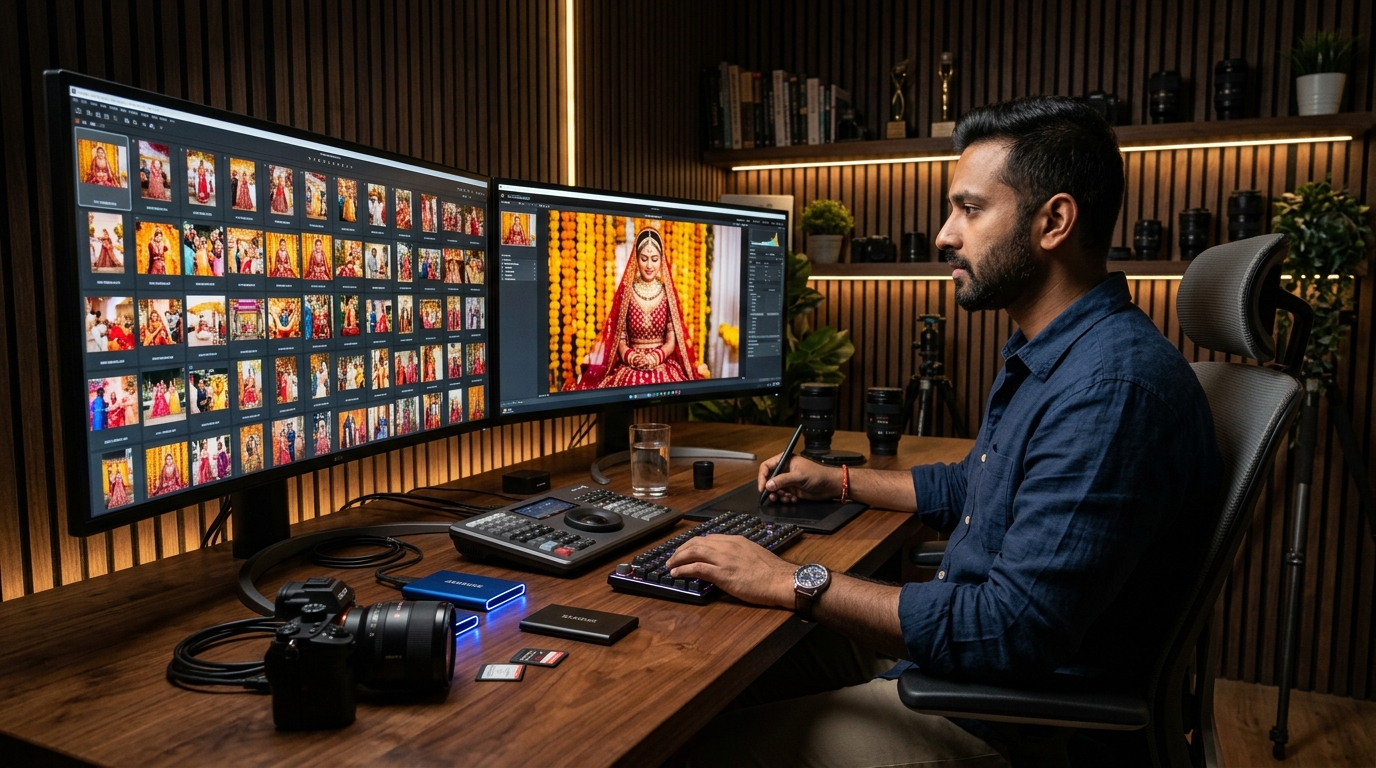
An Indian wedding is a chromatic challenge. Across a single 3-day assignment, studios capture 8,000 to 15,000 uncompressed RAW files across mismatched camera bodies—Sony A7 IVs for candids, Canon R6 Mark IIs on stage, and Nikon Z8s on bridal portraits—under 2800K smoky Mandap fire, 5600K speedlights, and mixed halogen floodlights.
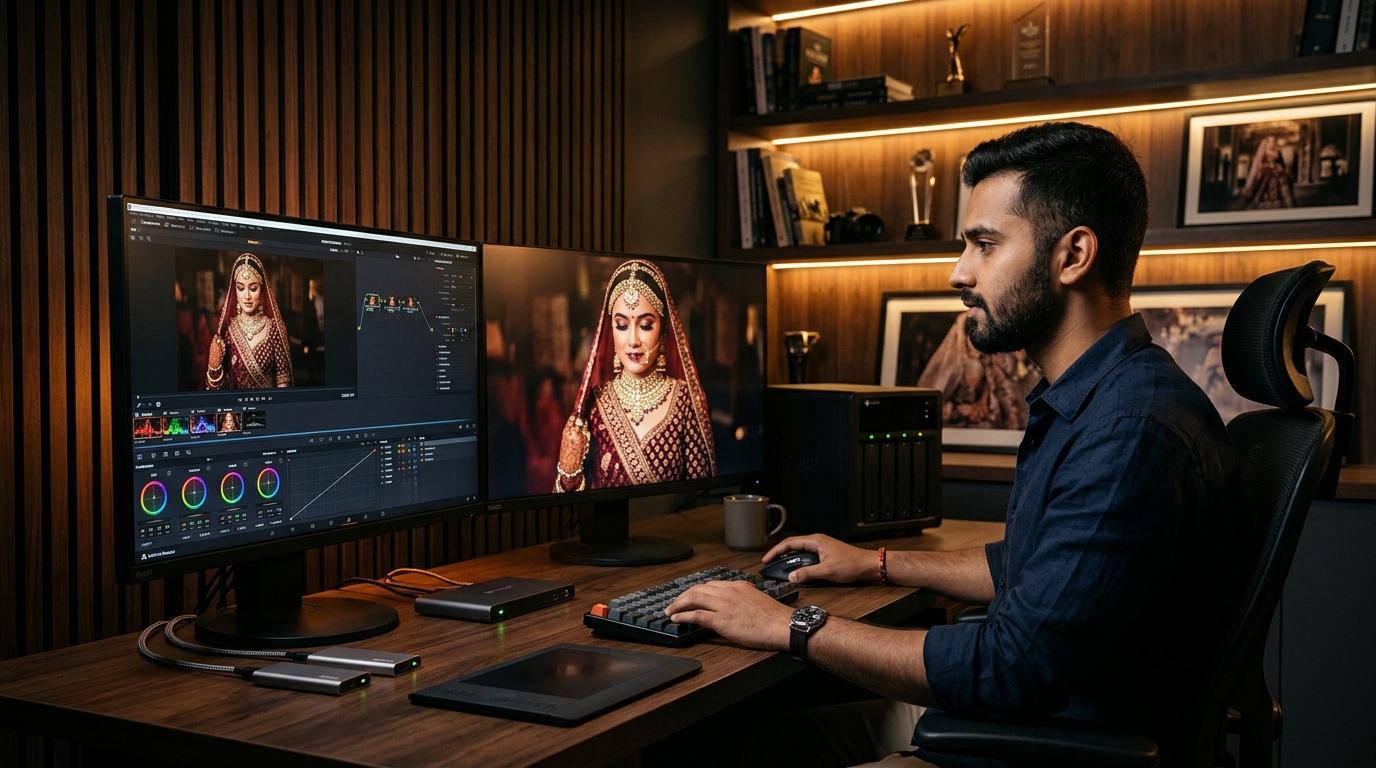
Traditionally, Indian studios lost 40+ grueling hours per wedding manually tweaking white balance and tint sliders frame-by-frame, only to watch designer ₹3 Lakh Sabyasachi crimson lehengas shift to neon orange. In 2026, top studios deploy Dual-Illuminant DNG Camera Profiles, Lightroom Classic AI Adaptive Masking, Point Color Red Gamut Locking, and Smart Preview GPU Caching to batch-grade 3,000 multi-camera RAWs in under 90 minutes with immaculate consistency—handing off ready catalogs directly to Pixelect SmartSelection for instant 15-second client-selected RAW extraction.
Ask any seasoned Indian wedding photographer about their biggest peak-season bottleneck, and the answer is rarely the 14-hour shoot days or the chaotic Baraat crowds. The true nightmare begins the following Tuesday morning: staring at 12,000 RAW files from three different shooters, knowing the couple expects sneak peeks within 72 hours and an album proofing gallery before the month ends.
When you open Lightroom Classic, the discrepancies are immediate. The lead shooter’s Sony A7 IV rendered the bride’s face with a subtle olive-yellow bias; the second shooter’s Canon R6 Mark II pushed magenta into the groom’s sherwani; and the Mandap fire introduced deep chromatic contamination that turns pure gold zari embroidery into muddy sludge. Fixing these issues with global sliders or generic LUTs destroys highlight roll-off and clips the red channel. Here is how modern studios conquer it.
🎨 Section 1: The Multi-Camera Color Calamity — Matching Sony Yellows & Canon Magentas in Indian Mandaps
Why do camera brands clash under Indian wedding lighting? It stems from their proprietary Color Filter Arrays (CFA) and debayering algorithms. Sony sensors lean neutral-cool and often interpret warm 3000K banquet lighting with an olive-yellow cast. Canon deliberately biases DIGIC color matrices toward magenta undertones—flattering in daylight, but prone to blowing out rich Indian skin tones into sunburned pinks when hit with 5600K speedlights.
Adjusting Tint toward magenta to fix Sony olive tones pushes gold jewelry into purple; pulling Kelvin cooler on Canon drains the emotional candlelight warmth of the Pheras. Elite studios eliminate brand disparity at the hardware profile level using a Dual-Illuminant Custom DNG Profile:
- Shoot Target Swatches During Soundcheck: Hold a ColorChecker Passport under two conditions: ambient stage tungsten (~2856K) and pure 5600K strobe flash. Shoot target frames on both Sony and Canon bodies using matching exposure.
- Generate Dual-Illuminant Profiles: Export target shots as DNG files and load them into Adobe DNG Profile Editor. The software generates a dual-matrix profile (e.g.,
Studio_Sony_Dual.dcp). - Apply as Base Camera Profile: In Lightroom's Profile Browser, apply this custom profile. Lightroom interpolates between the two illuminant matrices based on actual Kelvin temperature, collapsing Sony olive and Canon magenta into an identical chromatic baseline across all 3,000 photos.
Never leave your Lightroom default profile set to Adobe Color for Indian weddings. It artificially boosts contrast and midtone saturation, pushing yellow haldi and crimson dupattas into clipped territory. Set your default import preset to Camera Neutral or Camera Faithful to gain 1.5 stops of extra highlight latitude on gold jewelry.
🌹 Section 2: The Sabyasachi Crimson Conundrum — Locking Authentic Bridal Reds Without Blown Highlights
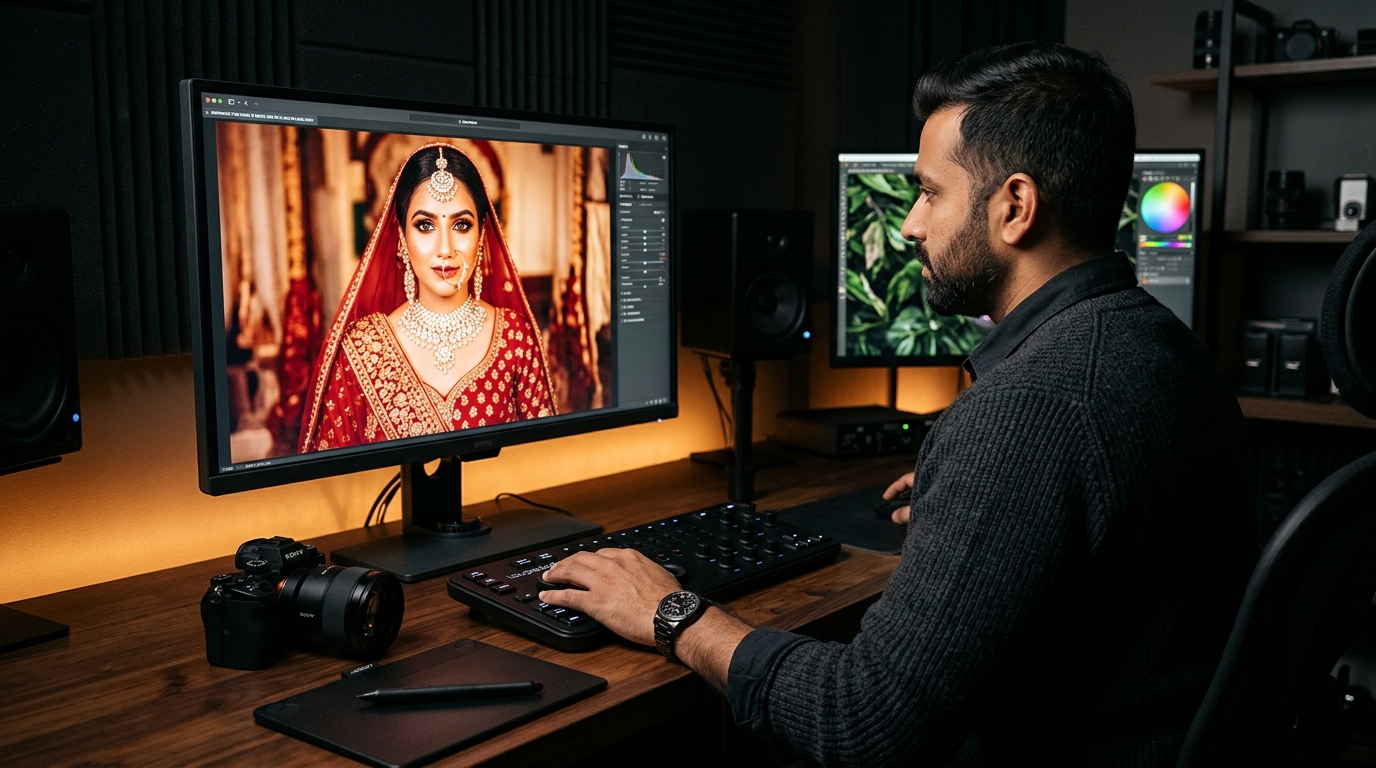
Nothing frustrates a high-ticket bride faster than seeing her ₹3 Lakh to ₹7 Lakh designer lehenga—crafted in deep crimson, heritage vermilion, or royal maroon—look like fluorescent orange in delivered photos.
In digital color science, pure red has a very narrow luminance ceiling. When warm Mandap fire (2800K) or yellow fairy lights illuminate red velvet, the red channel spikes to maximum (255) while green and blue hover near zero. Raising global exposure clips the red channel completely into digital white, stripping the fabric's weave and converting rich embroidery into a harsh orange sheen.
The 3-Step Red Preservation Protocol
- Surgical Point Color Sampling: Zoom to 100% on the lehenga. Use the Point Color eyedropper on the mid-shadow fold of the fabric (avoiding specular glare) and constrain the hue range to exclude orange skin tones.
- Hue Deflection & Luminance Compression: Shift Red Hue by +6 to +10 toward Magenta to counterbalance tungsten warmth. Pull Red Luminance down by -14 to -20. This restores deep velvet texture and micro-shading without darkening the rest of the image.
- Tone Curve Highlight Pinning: In the Parametric Tone Curve, place an anchor at the 75% highlight point and pull highlights down by -8. This rolls off specular flash glare on gold zari borders, preventing blowout under direct fill flash.
Pushing global Vibrance (+25) and Clarity (+15) turns natural organic turmeric into radioactive neon green-yellow and deepens facial pores into black craters. During Pheras, it transforms delicate Havan smoke into dirty grey smudges. Keep global Clarity strictly between -3 and +4, and rely on localized AI masking.
⚡ Section 3: Lightroom Classic 2026 AI Masking at Scale — Batch-Syncing Adaptive Subject & Skin Profiles
Manually brushing over the bride’s face, burning backgrounds, and dodging sherwanis across 2,000 photos is obsolete. In Lightroom Classic 2026, Adobe Sensei AI automatically detects subjects, people, facial skin, body skin, clothing, and background depth directly in RAW data.
Build a single master preset named Pixelect_AI_Royal_Master containing these 4 auto-detecting neural layers:
- Layer 1: Background Separation: AI selects Background. Settings: Exposure:
-0.35 EV, Highlights:-15, Saturation:-8. Recedes chaotic banquet chairs, giving the couple a natural 3D pop. - Layer 2: Subject Pop (Bride & Groom): AI selects Subject. Settings: Shadows:
+16, Clarity:+6, Texture:+4, Sharpness:+18. Recovers shadow detail in dark sherwanis and sharpens Kundan jewelry. - Layer 3: Facial & Body Skin Micro-Softening: AI selects People > Entire Skin. Settings: Texture:
-10, Clarity:-6, Highlights:+4. Softens heavy makeup caking and flash glare while preserving authentic skin pore texture. - Layer 4: Iris & Sclera Sparkle: AI selects People > Eye Sclera & Iris. Settings: Exposure:
+0.25 EV, Clarity:+10. Adds clean catchlight sparkle to bridal close-ups through heavy veils.
Select 400 Varmala or Reception portraits and hit Sync Settings > Check All Masks. Lightroom Classic recalculates masks in background threads, allowing your team to continue editing without interruption.
⚙️ Section 4: Hardware & Catalog Tuning — Crushing Lightroom Lag on 50MP Multi-Camera Wedding Catalogs
Color grading speed collapses if Lightroom stutters on 50MP Sony A1 or Nikon Z8 RAWs. High-volume Indian studios apply four critical catalog optimizations to maintain fluid 60 FPS editing:
- Smart Previews with Disconnected RAWs: Generate 2560px Smart Previews upon import. Under Preferences > Performance, check "Use Smart Previews instead of Originals for Image Editing". Lightroom edits the 2MB previews with zero disk latency, referencing master RAWs only during final export.
- Dedicated 100GB NVMe Cache: Move Lightroom's Camera Raw cache off your C: boot drive to a dedicated PCIe 4.0 NVMe SSD and increase size from the default 5GB to 80GB–100GB.
- GPU Acceleration Customization: Set Use Graphics Processor to Custom and enable both display and image processing acceleration with at least 8GB to 16GB of VRAM.
- 1-Wedding, 1-Catalog Protocol: Avoid monolithic catalogs containing 100,000+ files. Keep a dedicated catalog for each wedding assignment (e.g.,
2026_Nov_Aarav_Pooja.lrcat) to prevent SQLite database degradation.
High-ticket wedding color grading is about establishing unshakeable chromatic baselines through Dual-Illuminant profiles, pinning red limits in Point Color, and letting AI Adaptive presets handle 80% of repetitive micro-adjustments. When calibrated, 3,000 photos flow seamlessly.
📊 Studio Benchmark: Old Manual Color Grading vs. Modern Pixelect AI Pipeline
| Production Milestone | Old Manual Studio Way (Legacy) | Modern Pixelect AI Pipeline (2026) |
|---|---|---|
| Multi-Camera Color Matching | Manual Kelvin/Tint tweaking per shot; 6–8 hours of inconsistent results | Dual-Illuminant DNG Profiles unify Sony/Canon sensors in 60 seconds |
| Bridal Lehenga Red Preservation | Global vibrance boosts; clipped highlights, flat velvet, neon orange shift | Point Color Red Gamut locking & -18 Luminance compression keeps true crimson |
| Skin Retouching & Isolation | Manual radial filters & brushes on VIP portraits; 12–16 tedious hours | AI Adaptive Neural Masks auto-detect couple & skin across 3,000 photos in 25 min |
| Lightroom Slider Latency | 2–4 second lag per 50MP RAW; constant disk thrashing & fan spin | Smart Preview GPU mode & 100GB NVMe cache gives instantaneous 60 FPS editing |
| Client Album Selection & Culling | Sending 3,000 photos on pen drive; client selection takes 6 months | WhatsApp PIN Gallery via Pixelect; client picks in 7 days; 1-click RAW copy in 15s |
| Total Turnaround Time | 35 to 45 Hours per Wedding | Under 90 Minutes Total |
🚀 Section 5: The End-to-End Post-Production Bridge — From Lightroom Export to 15-Second RAW Extraction
Speed inside Lightroom Classic solves only half of your studio's operational challenge. Consider what traditionally happens next: you export 3,000 color-graded JPEGs, copy them onto a USB drive, and ask the couple to select 250 photos. What follows is months of silence as the overwhelmed couple delays selection, freezing your final 20% to 30% balance payment. When they finally send a list of file names, your editor spends an entire day hunting down master RAWs.
The integration between Lightroom Classic and Pixelect SmartSelection bridges this workflow completely:
How Top Studios Bridge the Gap in 3 Simple Steps:
- Export Web-Optimized Proofs: After batch color grading in Lightroom, export lightweight 2048px sRGB JPEGs (under 800KB each).
- Deploy Pixelect WhatsApp PIN Gallery: Upload proofs to Pixelect SmartSelection. The couple receives an elegant gallery protected by a 6-digit PIN on WhatsApp, completing their 250 album selections in under 7 days.
- 1-Click Local RAW Auto-Copy in 15 Seconds: When approved, Pixelect generates an automated batch runner script that extracts and copies all 250 client-selected RAW files into a dedicated folder in just 15 seconds. Zero manual search. Zero missing files.
📋 4-Step Actionable Checklist: Implementing the 90-Minute Batch Grading Workflow
✅ Shoot ColorChecker target swatches on all cameras during soundcheck. Generate custom DNG dual-illuminant profiles and set your Lightroom import default to Camera Neutral to preserve highlight latitude.
✅ Use Point Color to shift Red Hue +8 toward magenta and compress Red Luminance by -16 to lock authentic Sabyasachi velvet crimsons without digital clipping. Pin tone curve highlights at 75%.
✅ Apply your 4-layer AI Adaptive Preset (Background drop -0.35 EV, Subject pop, Skin micro-softening) and batch sync across the ceremony catalog while editing in Smart Preview mode on a 100GB NVMe cache.
✅ Export lightweight web proofs to Pixelect SmartSelection, share via WhatsApp PIN gallery, close client album approval in 7 days, and auto-copy selected master RAWs in 15 seconds.
❓ Frequently Asked Questions (FAQs)
Q1: How do I eliminate green or yellow color casts on the bride's face caused by banquet LED walls?
Banquet LED walls often emit low-CRI green-yellow spikes. In Lightroom's Color Mixer (HSL) panel, drop Green Saturation to -45 and Luminance to -20. In Yellow, shift Hue toward Orange (+8) and lower Saturation to -10. Finally, use an AI Select Subject > Facial Skin mask to warm the face with +3 Tint toward magenta, neutralizing the LED spill without affecting background ambiance.
Q2: Will batch syncing AI Adaptive Masks on 3,000 photos freeze my editing laptop?
No—if you enable GPU acceleration under Preferences > Performance > Custom > Use GPU for image processing and split your catalog by ceremony sequence (e.g., 400 Bridal Prep, 600 Baraat, 800 Mandap). Sync 400 photos at a time; Lightroom’s background threads compute masks in under 3 minutes on Apple Silicon or RTX 40-series laptops while you review the previous batch.
Q3: How does Pixelect SmartSelection help our studio recover stuck balance payments faster?
In Indian weddings, the final 20% to 30% payment is tied to album delivery. When clients take 6 months to select photos via USB, studio cash flow freezes. Pixelect solves this by delivering proofs via a private WhatsApp PIN gallery optimized for mobile swiping. Couples select photos easily within 7 days, dropping album approval cycles from 180 days to 10 days and unlocking your final balance payment immediately.
Stop Wasting 40 Hours on Manual Photo Culling & Pen-Drive Chaos
You’ve mastered lightning-fast Lightroom AI color grading. Now supercharge your client delivery pipeline. Share instant, private WhatsApp PIN galleries with your clients, get album selections locked in 7 days, and auto-copy selected master RAW files locally in 15 seconds flat.
🚀 Explore Pixelect SmartSelection Free →Zero client app downloads required • 100% private PIN protection • Instant local RAW extraction